Create a lesson
Write your own lesson in the lesson editor, preview it as a student, and give it to your class as a Quest.
A lesson is a set of slides. In the code panel, students read each slide on the left and write their code next to it. You build lessons in the lesson editor, from My Creations in the sidebar.
Start a lesson
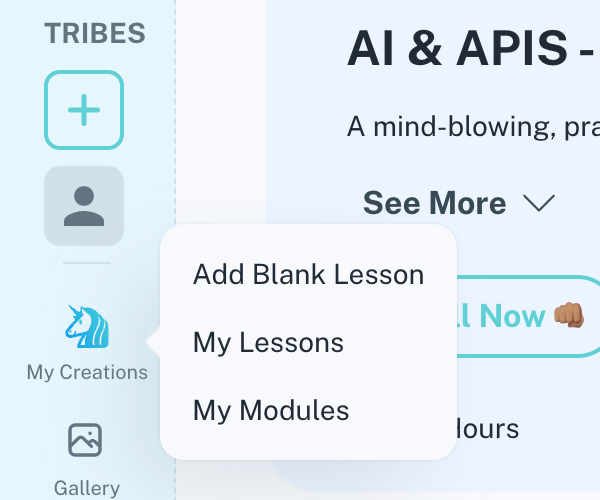
- In the sidebar, select My Creations, then Add Blank Lesson. The lesson editor opens with your new lesson.
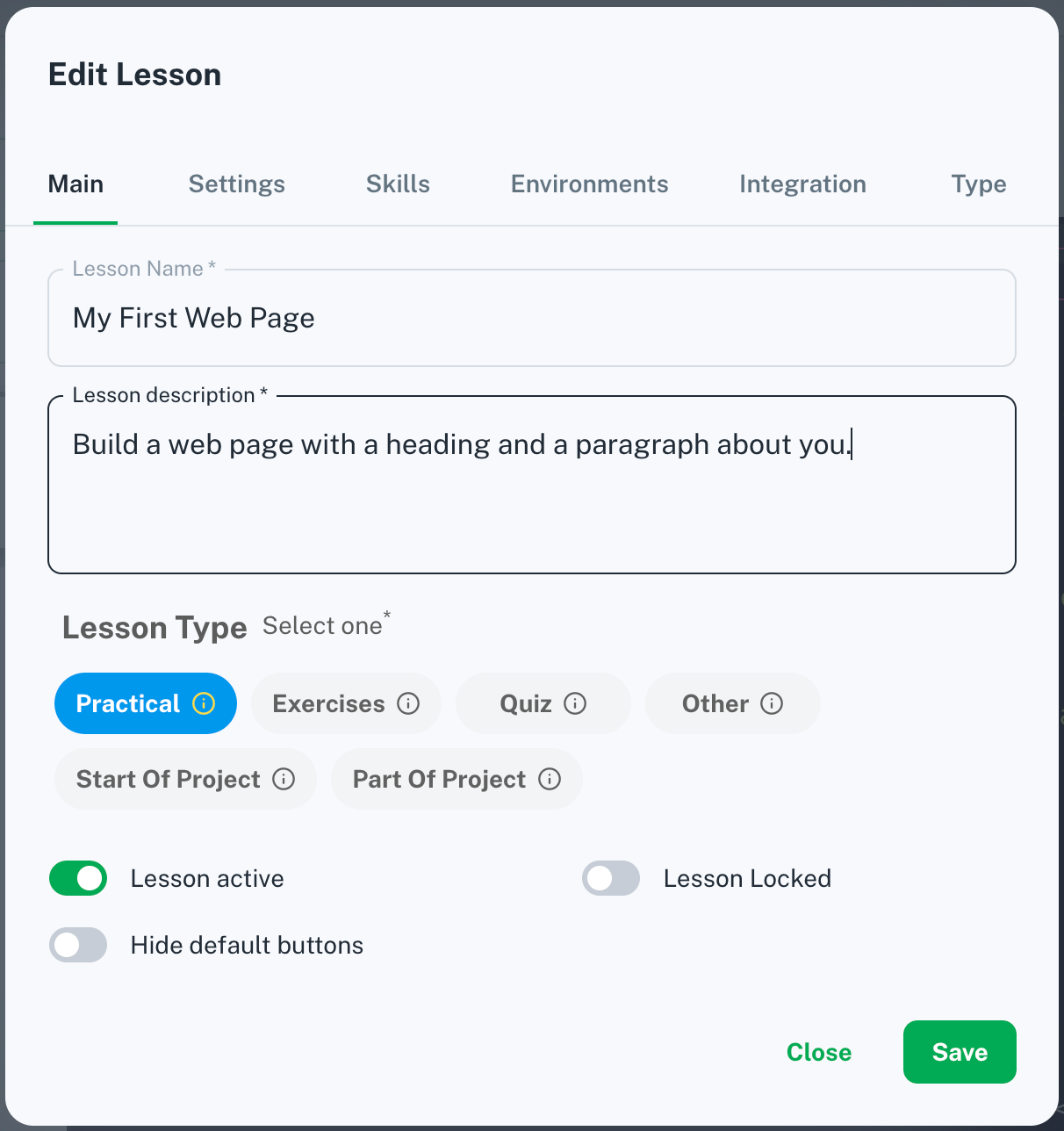
- Select LESSON SETUP & SETTINGS. On the Main tab, type a Lesson Name and a Lesson description, and pick a Lesson Type.
- Make sure Lesson active is on. Courses and modules show only active lessons.
- Select Save.
To open a lesson again later, select My Creations, then My Lessons.
Add slides
A new lesson starts with one sample slide. Change it to your own content, or remove it: on its card, select ⋮, then Remove.
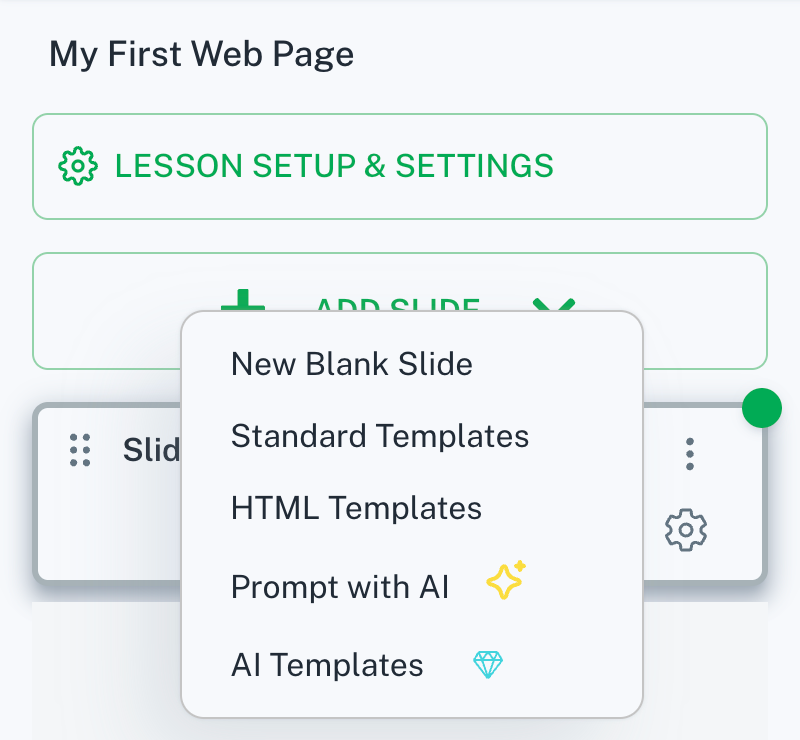
- Select ADD SLIDE, then New Blank Slide. Standard Templates and HTML Templates add slides that are already laid out.
- Select the new slide's card. Above the slide, choose how to write it: Standard works like a word processor, while HTML and Markdown let you write the slide as code. CodeTribe asks you to confirm before it switches.
- Write the slide. On the right, you see it the way students will.
- Select Save in the editor's toolbar before you open another slide.
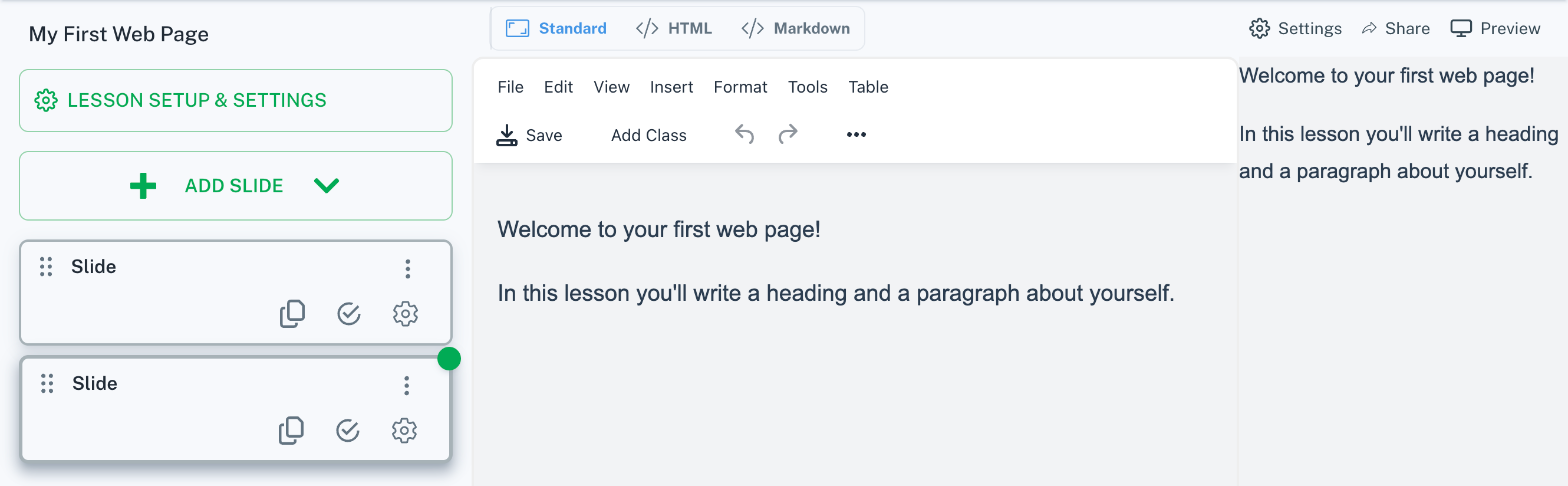
To change the order of the slides, drag a card by its ⠿ handle.
Preview the lesson
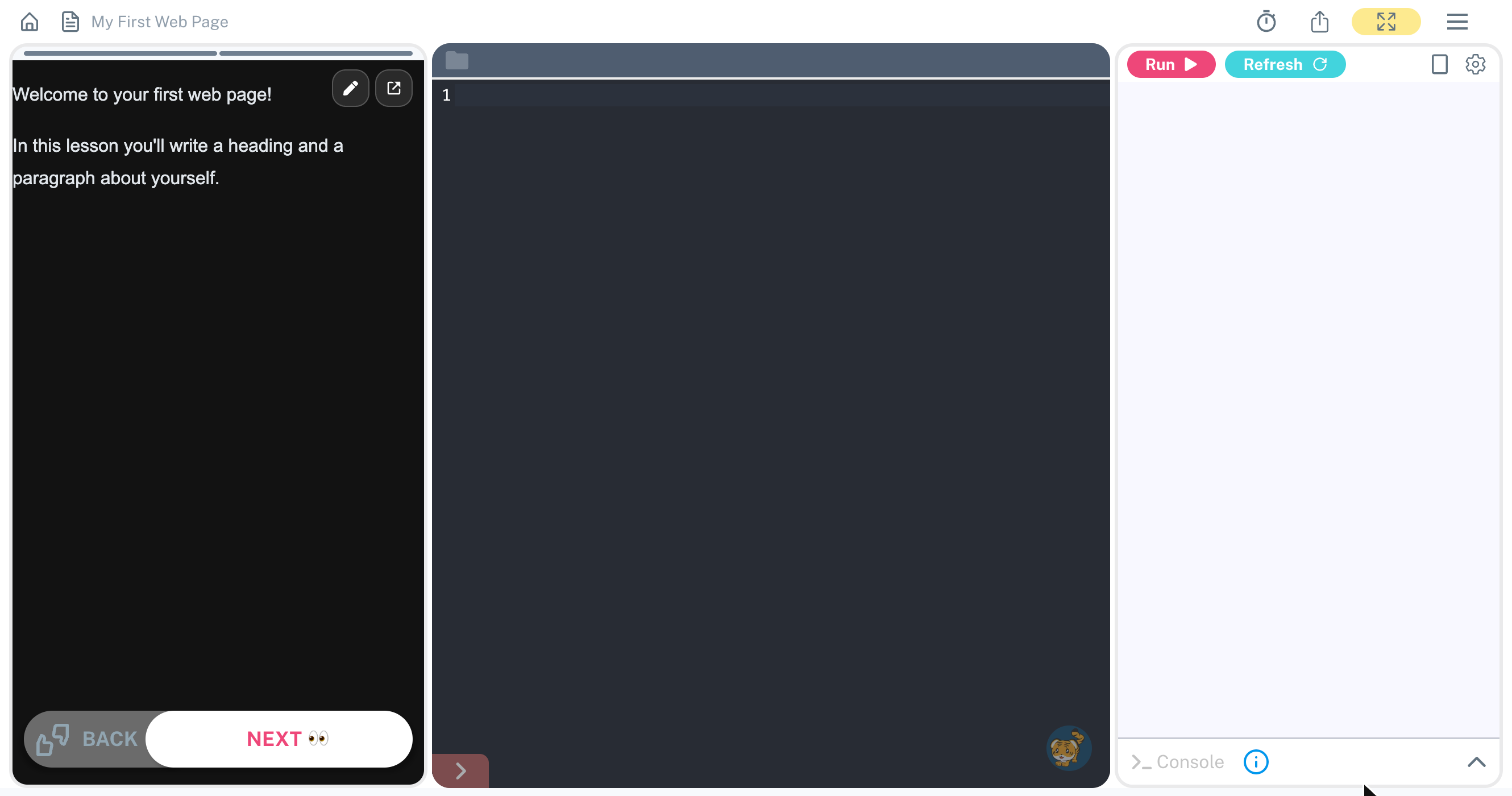
- At the top right of the editor, select Preview. The lesson opens in the code panel in a new tab, as your students will see it.
- Select NEXT to move through the slides.
To have CodeTribe check your students' code on a slide, add tests to it.
Give the lesson to your class
- Open your class: in the sidebar, under TRIBES, select it.
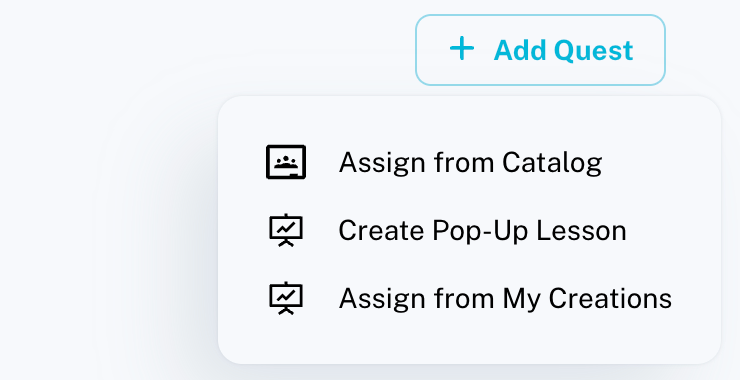
- On the Quests tab, select Add Quest, then Assign from My Creations.
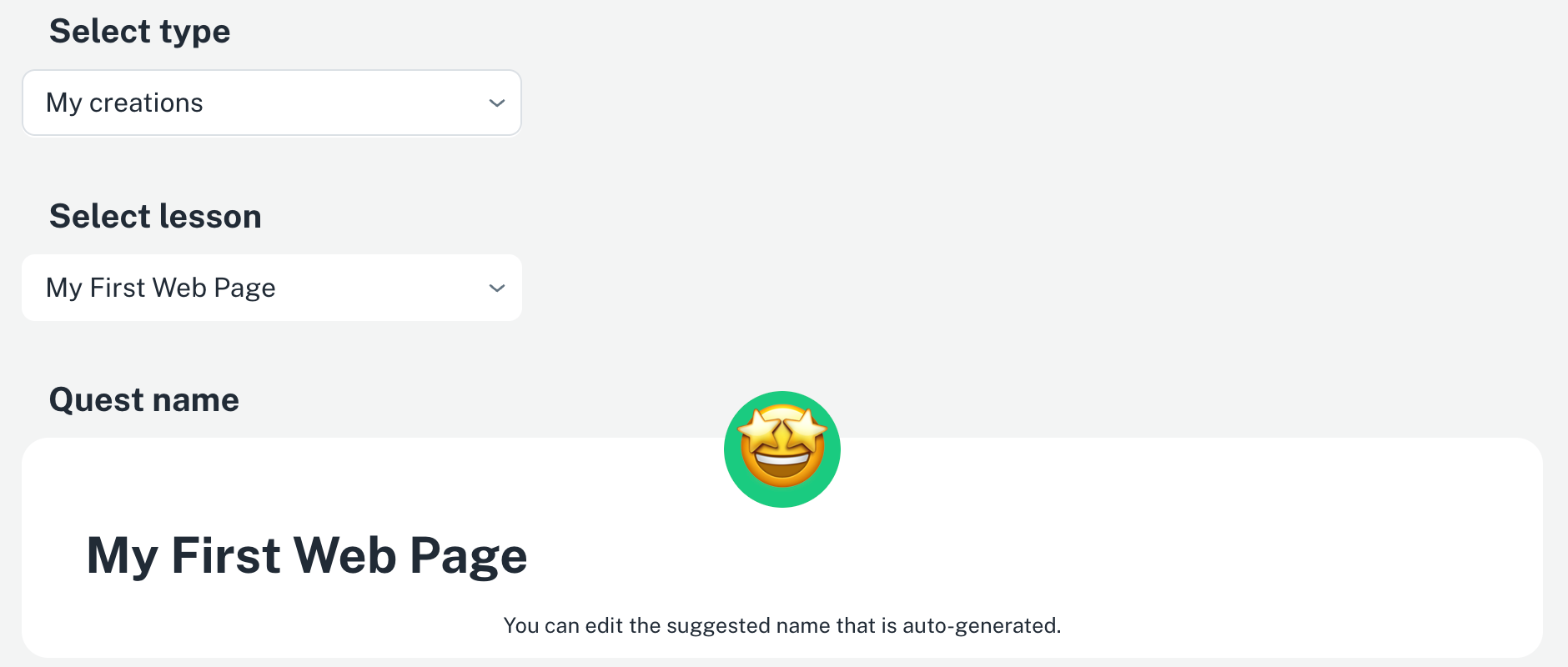
- Under Select lesson, choose your lesson.
- Optionally, change the Quest name. CodeTribe suggests one for you.
- Optionally, select the Settings tab and change the Due Date.
- Select Launch. The Quest shows on the class's Quests tab. Students select Keep Coding to open your lesson.

To keep several lessons together in order, group them into a module.