Add and manage students
Create student accounts yourself, edit their details, give them a new password, or remove them from your school.
Use this when your students can't sign up on their own. The Students page is in the dashboard. Admins open the dashboard from their account menu: select your picture at the top right, then Manager Account.
Add a student
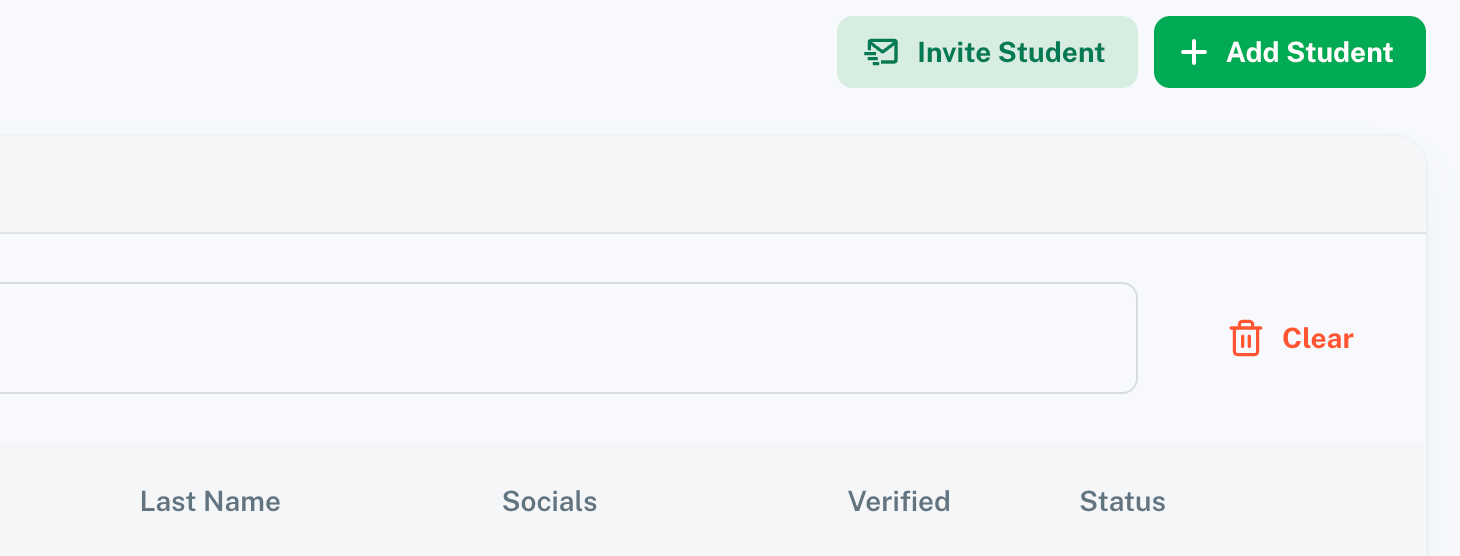
- In the sidebar, select Students, then Add Student.
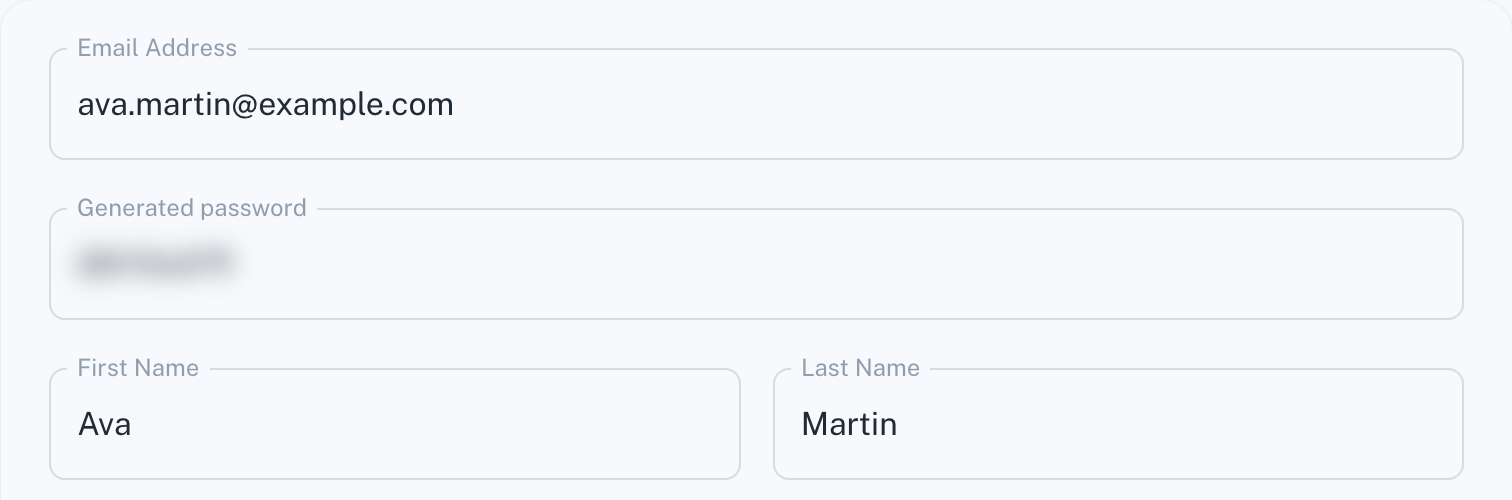
- Type the student's Email Address, First Name and Last Name. The other boxes are optional.
- Copy the Generated password and keep it safe. The student signs in with their email and this password.
- Select Create User. You see Create success!, and the student shows in the list.
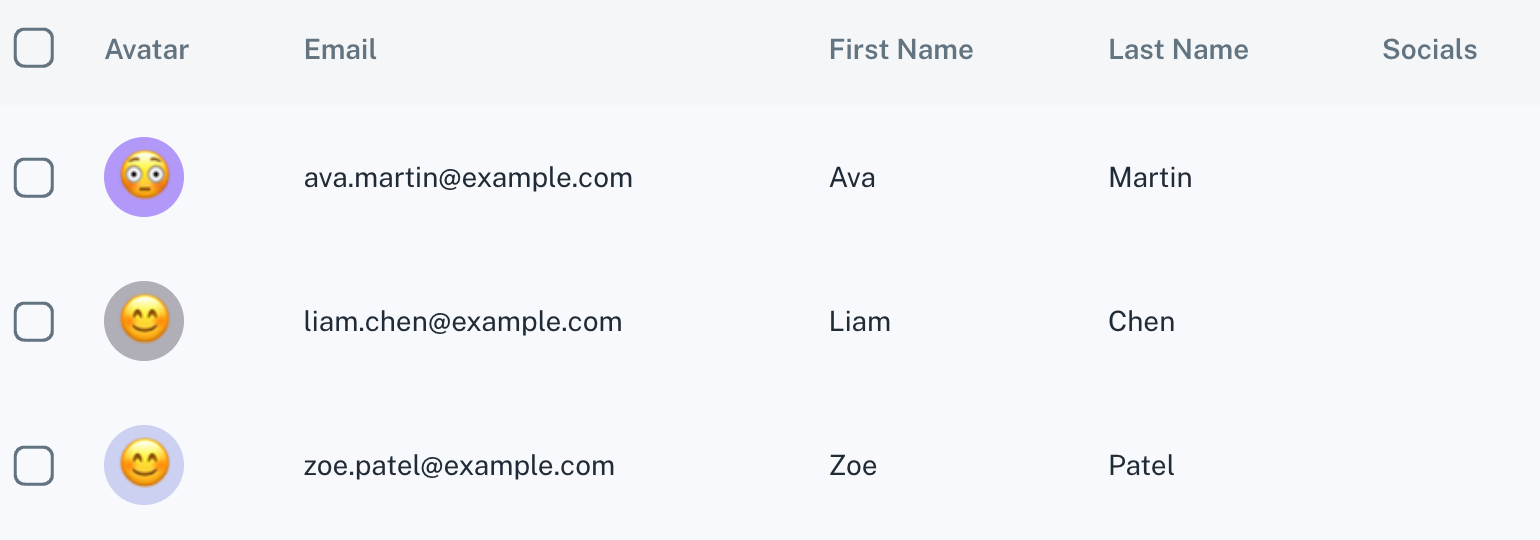
To put the student in a class, see Add students who already have an account.
Edit a student
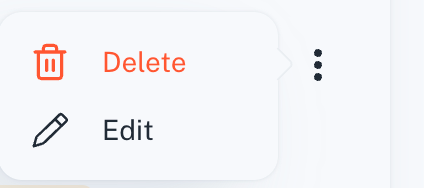
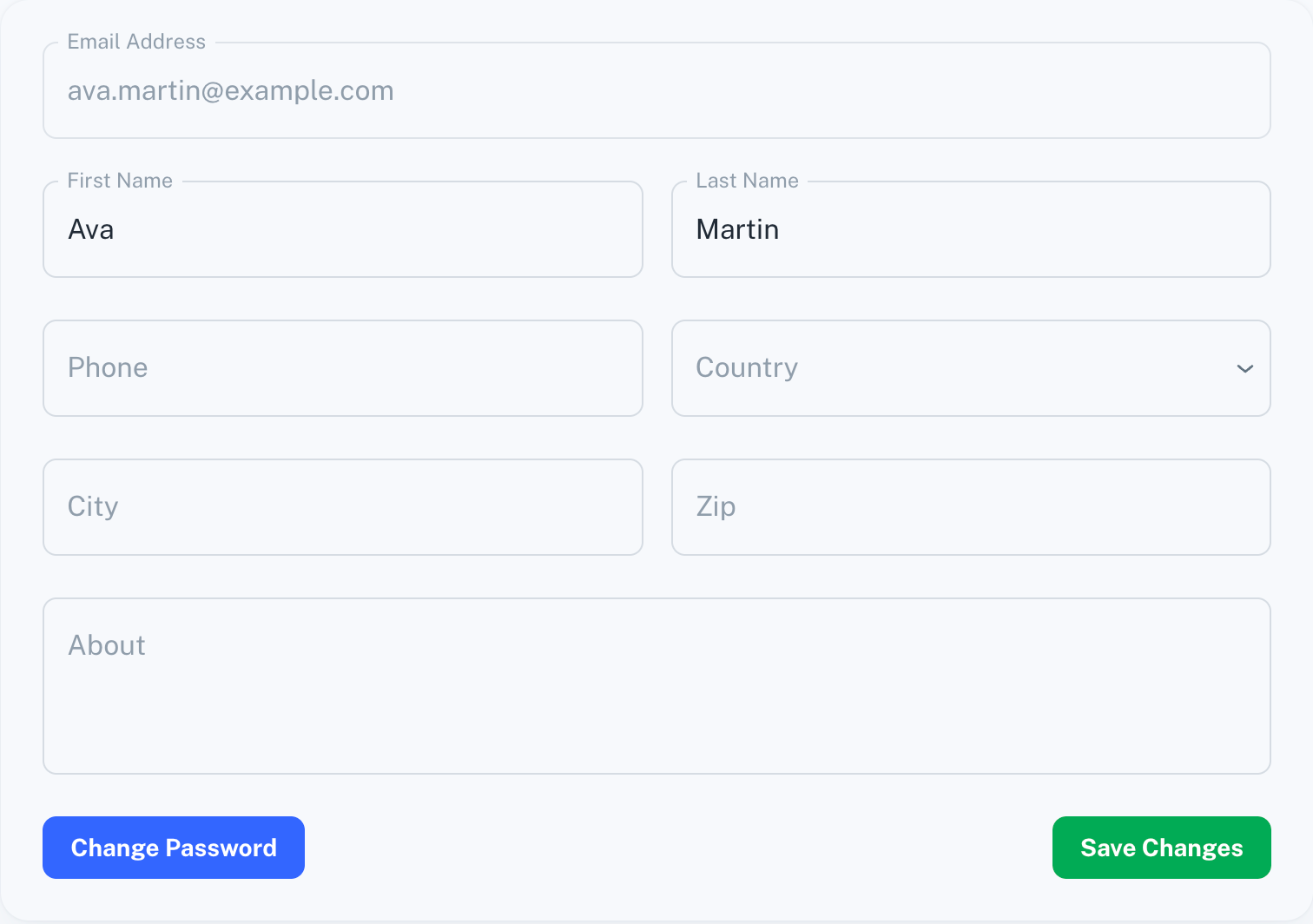
- On the Students page, select ⋮ at the end of the student's row, then Edit.
- Change their details, then select Save Changes.
Give a student a new password
- On the student's edit page, select Change Password. A Generated password box opens below it, with a new password.
- Select the Change Password button under that box. The page shows the new password.
- Give the new password to the student.
Remove a student
On the Students page, select ⋮ at the end of the student's row, then Delete, and confirm.
This takes the student out of your school and its classes. If they aren't in another school, their account and their work are deleted too, and you can't undo it. To take a student out of one class only, use the class's Members tab instead.